
How to Fix 403 Forbidden Error on Google Chrome: 10 Easy Fixes
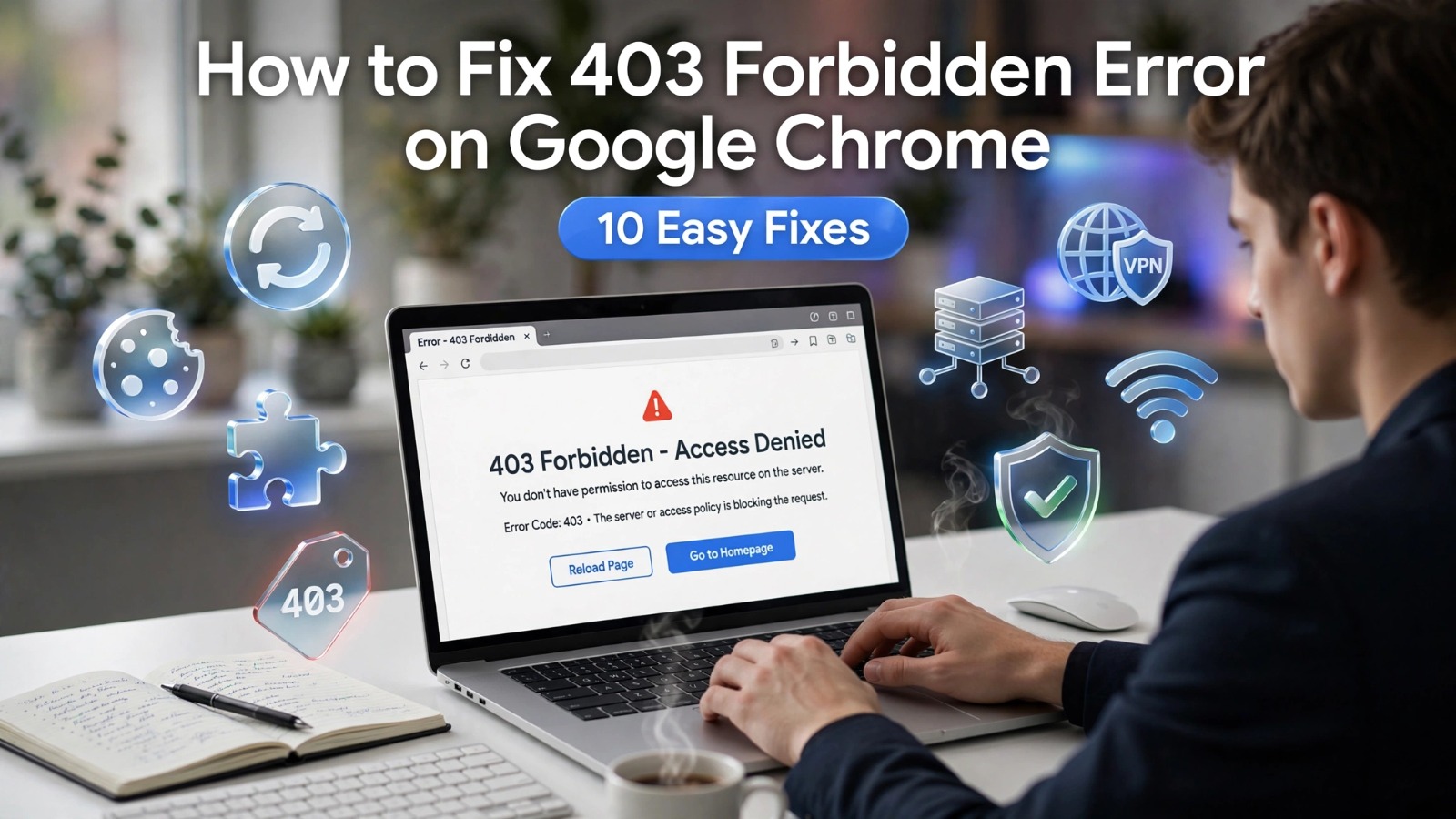
Have you ever tried opening a website in Google Chrome and suddenly received a 403 Forbidden error? This frustrating message means the server understood your request but refused to give you access. If you are searching for how to fix 403 forbidden error on google chrome, you are not alone. Many users experience this issue because of browser settings, security restrictions, network problems, or website server configurations.
The good news is that most 403 errors can be fixed with a few simple troubleshooting steps. In this guide, you will learn why this error appears, how to fix it on Chrome, Android devices, and what website owners can do when the problem comes from the server side.
What Is a 403 Forbidden Error?
A 403 Forbidden error is an HTTP status code that indicates access to a specific webpage or resource has been denied. The server receives and understands your request, but it does not allow you to view the requested content.
Unlike a 404 error, which means a page does not exist, a 403 error means the page exists but access is restricted.
When this error appears, you may see messages such as:
- 403 Forbidden
- HTTP 403 Error
- Error 403 Access Denied
- Forbidden You don’t have permission to access this resource
The problem is not usually caused by Google Chrome itself. Chrome simply displays the response it receives from the website server.
Why Does Google Chrome Show a 403 Forbidden Error?
Several factors can trigger a 403 Forbidden error in Chrome. Understanding the cause makes troubleshooting easier.
- Many websites use permission settings to control who can access specific files or pages. If the server permissions are incorrect, users may receive a 403 error.
- Chrome stores website data to improve loading speed. However, outdated or corrupted cache files can sometimes interfere with website access.
- Some websites block specific IP addresses because of security rules, suspicious activity, or location restrictions.
- A VPN changes your IP address and location. Some websites block VPN traffic, which can result in a 403 Forbidden response.
- A small mistake in the URL can send you to a restricted page instead of the public version of the website.
- Antivirus programs, browser extensions, and network firewalls may accidentally block website requests.
How to Fix 403 Forbidden Error on Google Chrome
Try these solutions one by one until the problem disappears.
1. Refresh the Webpage
Sometimes a 403 error happens temporarily because of a server issue.
Press:
- Windows: Ctrl + R
- Mac: Command + R
You can also click the refresh button in Chrome and check if the page loads correctly.
2. Check the Website URL
Before trying advanced fixes, confirm that you entered the correct web address.
Check for:
- Incorrect spelling
- Extra characters
- Wrong page paths
- Missing website sections
For example, instead of opening a restricted page directly, visit the website homepage and navigate normally.
3. Clear Chrome Cache and Cookies
Removing stored browser data can solve many access problems.
Follow these steps:
- Open Google Chrome.
- Click the three-dot menu.
- Select Settings.
- Open Privacy and security.
- Click Clear browsing data.
- Select Cookies and Cached images.
- Click Clear data.
After clearing the data, restart Chrome and try visiting the website again.
4. Open the Website in Incognito Mode
Chrome extensions and stored cookies can sometimes cause access problems.
To test this:
- Open Chrome.
- Click the three-dot menu.
- Select New Incognito Window.
- Visit the website.
If the website works in Incognito mode, an extension or saved browser data may be causing the issue.
5. Disable Chrome Extensions
Some extensions, especially ad blockers and security tools, can block website requests.
To disable extensions:
- Open Chrome settings.
- Select Extensions.
- Turn off extensions one by one.
- Reload the website.
Enable extensions again after identifying the problematic one.
6. Turn Off VPN or Proxy Connection
If you use a VPN, disable it temporarily and reload the page.
Many websites restrict access from:
- Shared VPN servers
- Suspicious IP addresses
- Certain countries or regions
After disabling the VPN, check whether the error disappears.
7. Restart Your Router and Internet Connection
Your current IP address may have been temporarily blocked by a website firewall.
Try:
- Turn off your router.
- Wait for 30 seconds.
- Turn it back on.
- Reconnect and open Chrome.
You can also test the website using mobile data to check whether your network is the problem.
8. Flush DNS Cache on Windows
DNS problems can prevent Chrome from connecting correctly to websites.
To flush DNS:
- Open Command Prompt.
- Type the following command:
ipconfig /flushdns- Press Enter.
Windows will clear old DNS records and create fresh connections.
9. Change DNS Server Settings
Your internet provider’s DNS server may sometimes cause connection issues.
You can try alternative DNS services such as:
- Google Public DNS
- Cloudflare DNS
Changing DNS settings may improve website accessibility and loading speed.
10. Contact the Website Owner
If none of the above solutions work, the issue may exist on the website server.
The website owner may need to check:
- Server permissions
- Firewall rules
- Security settings
- Access restrictions
How to Fix 403 Forbidden Error on Google Chrome Android
Android users may experience the same issue while browsing through Chrome mobile.
Try these solutions:
Clear Chrome App Cache
- Open Android Settings.
- Go to Apps.
- Select Chrome.
- Open Storage.
- Tap Clear Cache.
Update Google Chrome
An outdated browser version may create compatibility problems. Update Chrome from the official app store.
Restart Your Phone
A simple restart can refresh network connections and temporary settings.
Switch Internet Connection
Try:
- Mobile data instead of Wi-Fi
- Another Wi-Fi network
This helps identify whether your network is blocking access.
How Website Owners Can Fix 403 Forbidden Error
Sometimes visitors cannot fix the problem because the error comes from the website itself.
Website administrators should check the following:
Review File Permissions
Incorrect permissions can prevent users from accessing website files.
Common permission settings include:
- Files: 644
- Folders: 755
Check .htaccess Rules
Incorrect Apache configuration rules can accidentally block visitors.
Review recent changes before modifying server settings.
Check Security Plugins and Firewalls
Security systems may block legitimate visitors.
Review:
- Firewall logs
- Blocked IP addresses
- Security plugin settings
Review Server Logs
Server logs can reveal why access was denied and help identify the exact cause.
Sometimes, server-level problems can cause other website errors such as an HTTP 500 Internal Server Error. WordPress website owners can learn how to diagnose and fix these issues in our guide on HTTP Error 500 in WordPress.
403 Forbidden vs 404 Not Found
| Error | Meaning |
|---|---|
| 403 Forbidden | The server refuses access to the resource |
| 404 Not Found | The requested page does not exist |
A 403 error means the content exists but permission is restricted. A 404 error means the server cannot find the requested page.
Common Mistakes When Fixing 403 Errors
Avoid these mistakes:
- If you own a website, do not change important server settings without understanding the impact.
- Firewalls and security tools protect websites. Disable them carefully and test changes.
- Before making major browser or website changes, keep important information saved.
Best Practices to Prevent 403 Forbidden Errors
For users:
- Keep Chrome updated
- Avoid suspicious browser extensions
- Use trusted VPN services
- Clear browser data regularly
For website owners:
- Maintain correct file permissions
- Monitor server logs
- Update security tools
- Test website access regularly
Conclusion
A 403 Forbidden error on Google Chrome can happen because of browser settings, network restrictions, or website server permissions. In most cases, simple fixes like clearing cache, disabling extensions, checking your connection, or turning off VPN can solve the problem.
If you are still looking for how to fix 403 forbidden error on google chrome, follow the troubleshooting methods in this guide step by step. If the issue comes from the website server, only the website owner can make the necessary changes.
Frequently Asked Questions
Why does Chrome show a 403 Forbidden error?
Chrome shows a 403 Forbidden error when the website server denies access to a requested page or resource.
Is the 403 error caused by Google Chrome?
Usually, no. Chrome displays the error response from the website server. Browser settings, extensions, or cache issues can sometimes contribute.
How do I fix HTTP 403 Forbidden error?
You can fix it by clearing Chrome cache, disabling VPN, checking the URL, changing DNS settings, or contacting the website owner.
Can VPN cause a 403 Forbidden error?
Yes. Some websites block VPN IP addresses because they consider them risky or restricted.
How do I fix 403 error on Android Chrome?
Clear Chrome cache, update the app, restart your device, and try another internet connection.