
How to Fix HTTP Error 500 in WordPress (10 Proven Solutions)
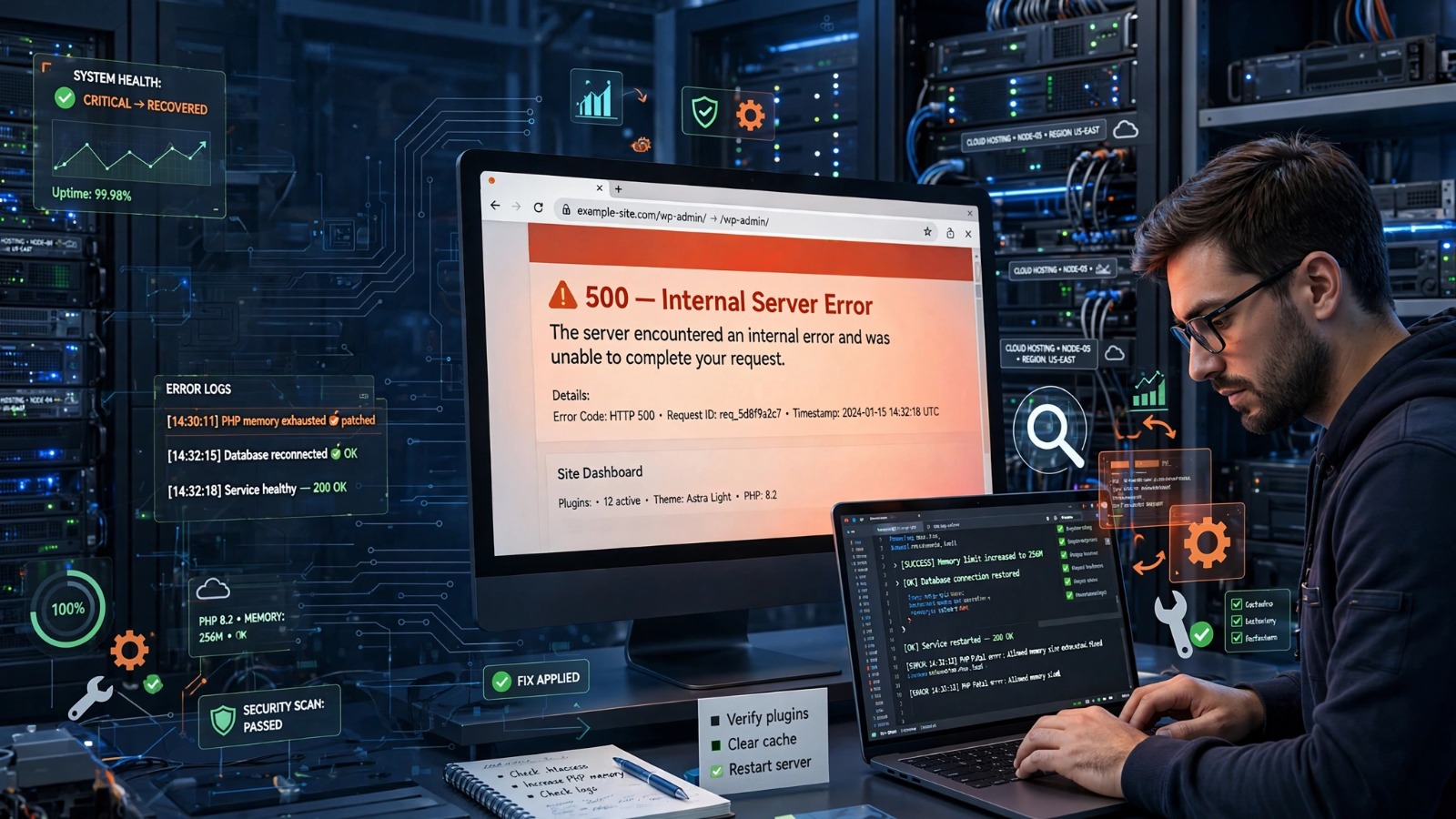
A WordPress website can suddenly become unavailable with a message that says HTTP Error 500, leaving visitors unable to access pages and administrators unable to understand what went wrong. This error is one of the most common server-related problems WordPress users experience, and it can appear after a plugin update, theme change, WordPress upgrade, or server configuration change.
The HTTP Error 500 WordPress issue indicates that the server encountered an unexpected problem while trying to process a request. Unlike some errors that clearly identify the cause, a 500 error provides very little information, which makes troubleshooting challenging for beginners.
For website owners, this problem requires quick attention because a persistent server error can affect user experience, website credibility, conversions, and search engine visibility. A website that frequently displays errors may lose visitors and create trust issues with potential customers.
The good news is that most WordPress 500 errors come from common issues such as faulty plugins, incorrect file settings, exhausted server resources, damaged configuration files, or compatibility problems. By following a structured troubleshooting process, you can usually identify and resolve the problem without rebuilding your entire website.
This guide explains what HTTP Error 500 means in WordPress, why it happens, how to fix it step by step, and what practices can help prevent it from returning.
What Is HTTP Error 500 in WordPress?
HTTP Error 500, also known as an Internal Server Error, is a general server response that tells users that something went wrong on the website server, but the server cannot provide a specific explanation.
When someone visits a WordPress website, the browser sends a request to the web server. The server processes that request, loads WordPress files, connects with the database, runs PHP scripts, and then returns the webpage. If something interrupts this process, the server may respond with a 500 error.
Unlike errors such as a 404 page not found error, which usually means a specific page does not exist, an HTTP 500 error points toward a deeper issue involving website files, code execution, server settings, or available resources.
In WordPress websites, this error can appear in different ways, including:
- “500 Internal Server Error”
- “HTTP Error 500”
- “Internal Server Error”
- A completely blank white page
- A message generated by the hosting provider
The exact appearance depends on the server software, hosting company, and website configuration.
Why Does WordPress Show an Internal Server Error?
WordPress relies on multiple components working together. These include:
- WordPress core files
- Themes
- Plugins
- PHP version
- Database connection
- Server configuration
- Hosting resources
If any of these components create an unexpected problem, the server may fail to complete the request and display an HTTP Error 500 message.
For example, a plugin may contain code that conflicts with another plugin. A theme update may introduce an error. A website may exceed its allocated memory limit. A damaged .htaccess file may prevent the server from correctly handling requests.
The error itself does not identify which component caused the problem, so website owners need to check possible causes systematically.
Common Signs of HTTP Error 500 in WordPress
The symptoms of a WordPress 500 error can vary depending on the cause. Some websites show the error on every page, while others experience it only in specific areas.
Website Pages Fail to Load
The most common sign is that visitors cannot open website pages. Instead of seeing the normal content, they receive an internal server error message.
This can happen on:
- Homepage
- Blog posts
- Product pages
- Contact pages
- Checkout pages
If important pages become inaccessible, visitors may leave before completing actions such as purchases, registrations, or inquiries.
WordPress Admin Dashboard Becomes Unavailable
In some cases, the website frontend works, but the WordPress dashboard shows an error when you try to log in.
This usually indicates a problem affecting WordPress execution rather than a simple browser issue.
Without dashboard access, troubleshooting becomes more technical because you may need to use hosting tools, FTP, or file managers.
Blank White Screen Appears
A common variation of the 500 error is the WordPress white screen of death. Instead of displaying an error message, the website shows an empty white page.
This often happens because PHP encounters a fatal error and stops processing the page.
Common causes include:
- Plugin conflicts
- Theme errors
- PHP memory limitations
- Incorrect custom code
Error Appears After a Recent Change
If the problem starts immediately after a specific action, that change is often the first place to investigate.
Examples include:
- Installing a new plugin
- Updating WordPress
- Changing themes
- Adding custom code
- Changing hosting settings
Identifying what changed before the error appeared can significantly reduce troubleshooting time.
What Causes HTTP Error 500 in WordPress?
Several factors can trigger an internal server error. Understanding the most common causes helps you diagnose the problem faster.
1. Corrupted .htaccess File
The .htaccess file controls important server-level settings for many WordPress websites, including URL structure and redirects.
If this file becomes damaged or contains incorrect rules, the server may fail to process website requests properly.
Common reasons for .htaccess problems include:
- Incorrect manual edits
- Plugin-generated rules
- Migration issues
- Server configuration changes
A damaged .htaccess file is one of the easiest causes to test because WordPress can regenerate it automatically.
2. Plugin Conflicts
Plugins extend WordPress functionality, but poorly configured or incompatible plugins can create server errors.
A plugin may trigger HTTP Error 500 because of:
- Compatibility problems with WordPress updates
- Conflicts with another plugin
- Incorrect coding practices
- Excessive server resource usage
For example, a security plugin may conflict with a caching plugin, or an outdated plugin may fail after a PHP version upgrade.
Testing plugins individually is usually the best way to identify the problem.
3. Theme Compatibility Problems
Themes control the design and layout of a WordPress website, but they also contain PHP code that interacts with WordPress.
A theme can cause a 500 error because of:
- Incorrect template code
- Outdated functions
- Conflicts with plugins
- Custom modifications
This commonly happens after updating a theme or adding custom code to theme files.
Switching temporarily to a default WordPress theme can help determine whether the theme is responsible.
4. PHP Memory Limit Exhaustion
WordPress requires server memory to execute PHP scripts. If a website uses more memory than the hosting environment allows, the server may stop the process and return a 500 error.
Memory usage can increase because of:
- Large plugins
- Complex themes
- High traffic
- Poorly optimized scripts
- Large database operations
Increasing the PHP memory limit may solve the issue, but it is also important to identify what is consuming excessive resources.
5. Damaged WordPress Core Files
WordPress core files control the basic functionality of the platform. If these files become incomplete or corrupted, the website may stop working correctly.
This can happen because of:
- Failed updates
- Interrupted file transfers
- Incorrect manual changes
- Malware-related damage
Replacing WordPress core files with fresh copies can often resolve this type of issue without affecting website content.
6. Incorrect File Permissions
WordPress files and folders need the correct permissions so the server can read and execute them properly. Incorrect permissions can sometimes lead to access denial errors, including 403 Forbidden messages.
Learn more about resolving browser access issues in our guide: How to Fix 403 Forbidden Error on Google Chrome: 10 Easy Fixes.
Incorrect permissions can occur after:
- Moving a website to a new hosting provider
- Uploading files manually through FTP
- Changing server settings
- Restoring a backup incorrectly
Typical WordPress permission settings are:
- Files: 644
- Folders: 755
These settings allow WordPress to function while limiting unnecessary access.
However, changing permissions without understanding server requirements can create additional problems. Always create a backup before modifying file permissions.
7. PHP Version Compatibility Problems
WordPress depends on PHP, the programming language that runs its backend functions. When the PHP version changes, older themes, plugins, or custom code may stop working correctly.
A hosting provider may automatically upgrade PHP to improve security and performance. While newer PHP versions generally provide benefits, outdated website components may not support them.
A PHP compatibility issue may appear after:
- Hosting migration
- PHP version upgrade
- WordPress update
- Plugin update
To troubleshoot this problem:
- Check the PHP version supported by your WordPress installation.
- Update outdated themes and plugins.
- Test the website using a compatible PHP version.
- Replace unsupported components.
Keeping WordPress, plugins, and themes updated reduces the chance of PHP-related errors.
8. Server Configuration Problems
Sometimes the problem does not exist inside WordPress itself. The server environment may have settings that prevent WordPress from working correctly.
Possible server-related causes include:
- Incorrect PHP configuration
- Server module problems
- Timeout limitations
- Incorrect security rules
- Misconfigured hosting settings
These issues often require assistance from a hosting provider because website owners may not have access to server-level controls.
A reliable hosting company should provide error logs and technical support to help identify these problems.
9. Hosting Resource Limitations
Every hosting plan has limits on resources such as:
- CPU usage
- RAM allocation
- PHP processes
- File operations
When a website exceeds these limits, the server may fail to complete requests and return an HTTP Error 500 message.
Resource problems commonly occur on websites with:
- High traffic volumes
- Large ecommerce stores
- Resource-heavy plugins
- Poorly optimized databases
- Multiple background processes
If resource usage frequently reaches limits, upgrading hosting or improving website optimization may be necessary.
How to Fix HTTP Error 500 in WordPress Step by Step
Before making any changes, create a complete website backup. Troubleshooting often involves editing important files, disabling plugins, or changing settings. A backup allows you to restore your website if something goes wrong.
Follow these troubleshooting methods in order.
Step 1: Check Whether the Error Is Temporary
Sometimes a server experiences a temporary issue that resolves automatically.
Start by:
- Refreshing the webpage
- Clearing browser cache
- Testing the website from another device
- Checking whether all pages or only specific pages are affected
If the error continues, move to deeper troubleshooting steps.
Step 2: Enable WordPress Debug Mode
WordPress includes a debugging feature that can reveal hidden PHP errors.
By default, WordPress does not display detailed technical errors because showing them publicly can create security risks. Instead, you can enable logging temporarily.
To enable debugging:
- Access your website files through FTP or your hosting file manager.
- Open the
wp-config.phpfile. - Find the line:
define('WP_DEBUG', false);
- Change it to:
define('WP_DEBUG', true);
- Add debugging options if needed to create a log file.
The debug log can help identify:
- Plugin errors
- Theme problems
- PHP issues
- Deprecated functions
After identifying the issue, disable debugging on the live website.
Step 3: Regenerate the .htaccess File
A corrupted .htaccess file is a common cause of WordPress internal server errors.
To check whether it is causing the problem:
- Connect to your website using FTP or the hosting file manager.
- Locate the
.htaccessfile in the main WordPress folder. - Rename it temporarily, for example:
old-htaccess
- Visit your website.
If the website starts working, regenerate the file:
- Log in to WordPress.
- Go to Settings.
- Select Permalinks.
- Click Save Changes.
WordPress will create a new .htaccess file automatically.
Step 4: Disable WordPress Plugins
Plugin conflicts are among the most frequent causes of HTTP Error 500.
If you can access the WordPress dashboard:
- Open Plugins.
- Deactivate all plugins.
- Check whether the website works.
- Reactivate plugins one by one.
The plugin that causes the error after activation is likely responsible.
If you cannot access the dashboard:
- Open your website files.
- Go to:
wp-content/plugins
- Rename the plugins folder.
For example:
plugins-disabled
WordPress will automatically deactivate plugins.
If the website loads afterward, restore the folder name and test individual plugins.
Step 5: Switch to a Default WordPress Theme
A damaged theme can prevent WordPress from loading correctly.
To test your theme:
- Access your WordPress dashboard.
- Go to Appearance > Themes.
- Activate a default WordPress theme.
If the website works normally afterward, your previous theme likely contains an error.
If you cannot access the dashboard:
- Open the
wp-content/themesfolder. - Rename your active theme folder.
- WordPress will attempt to use another available theme.
Step 6: Increase PHP Memory Limit
If WordPress runs out of available memory, increasing the PHP memory limit may solve the issue.
You can increase memory by editing:
wp-config.php- PHP configuration files
- Hosting control panel settings
A common WordPress configuration adjustment involves adding a memory limit value inside wp-config.php.
However, increasing memory only addresses the symptom. If a plugin or script consumes excessive resources, that underlying issue should also be investigated.
Step 7: Replace WordPress Core Files
If WordPress core files are damaged, replacing them can restore normal functionality.
A safe method is:
- Download a fresh copy of WordPress.
- Extract the files.
- Upload new core files.
- Avoid replacing the
wp-contentfolder. - Keep the existing
wp-config.phpfile.
This process replaces WordPress system files while preserving:
- Themes
- Plugins
- Media uploads
- Website content
Step 8: Check File Permissions
Incorrect permissions can prevent WordPress from accessing necessary files.
Review:
- WordPress folders
- PHP files
- Upload directories
Ensure permissions follow recommended hosting practices.
Avoid setting all files to full access permissions because this can create security vulnerabilities.
Step 9: Review Server Error Logs
Server logs provide detailed information about what caused the failure.
You can usually find logs through:
- Hosting control panels
- Server management dashboards
- FTP directories
- Hosting support tools
Logs may reveal messages related to:
- PHP fatal errors
- Memory exhaustion
- Permission problems
- Script failures
Reading error logs often provides the fastest route to identifying the exact cause.
Step 10: Contact Your Hosting Provider
If the above solutions do not resolve the problem, the issue may exist at the server level.
Contact your hosting provider and provide:
- The exact time the error started
- Recent changes made to the website
- Error messages from logs
- A description of affected pages
Hosting support teams can check server configurations, resource usage, and system logs that are unavailable to normal users.
Conclusion
An HTTP Error 500 WordPress problem can interrupt website access, affect user experience, and create frustration for website owners. However, this error does not usually require a complete website rebuild. In most cases, the cause can be identified by following a structured troubleshooting process.
Start with the simplest checks, such as reviewing recent changes, clearing temporary issues, and checking plugins or themes. If those steps do not resolve the problem, move toward advanced solutions like reviewing error logs, checking server resources, verifying file permissions, and investigating hosting configurations.
Regular maintenance plays an important role in preventing future server errors. Keeping WordPress, themes, and plugins updated, using reliable hosting, maintaining backups, and testing major changes before applying them to a live website can significantly improve website stability.
A careful approach to troubleshooting helps you restore your website faster while protecting important data and avoiding unnecessary changes. By understanding the common causes and solutions behind HTTP Error 500, WordPress users can handle these situations more confidently and maintain a secure, reliable website.
Frequently Asked Questions
What does HTTP Error 500 mean in WordPress?
HTTP Error 500 means the server encountered an unexpected problem while processing a request. In WordPress, the issue usually comes from plugin conflicts, theme errors, PHP problems, damaged files, or server configuration issues.
Why does my WordPress website suddenly show a 500 Internal Server Error?
A WordPress website can suddenly display a 500 error because of recent changes such as plugin updates, theme modifications, WordPress updates, PHP version changes, or increased server resource usage. Checking recent changes is often the fastest way to find the cause.
Can a plugin cause HTTP Error 500 in WordPress?
Yes. A plugin can cause a 500 error if it contains incompatible code, conflicts with another plugin, uses excessive server resources, or does not support your current WordPress or PHP version. Disabling plugins one by one can help identify the problematic plugin.
Can a WordPress theme cause a 500 Internal Server Error?
Yes. Themes contain PHP code that controls website functionality. A theme with outdated code, compatibility problems, or incorrect custom changes can trigger server errors. Testing with a default WordPress theme can confirm whether the theme is responsible.
Does HTTP Error 500 affect SEO rankings?
A temporary HTTP Error 500 usually does not create serious SEO problems. However, if search engines and visitors repeatedly encounter server errors for an extended period, it can negatively affect website accessibility and user experience. Maintaining website availability is important for long-term search visibility.
Is HTTP Error 500 caused by my web hosting?
Sometimes. Hosting problems such as server misconfiguration, resource limitations, or temporary server failures can trigger HTTP Error 500. If WordPress files, plugins, and themes appear normal, your hosting provider should review server logs and settings.
Should I delete WordPress and reinstall it to fix HTTP Error 500?
Reinstalling WordPress is usually not the first solution. Most 500 errors come from specific problems such as plugins, themes, configuration files, or server settings. A proper diagnosis can often fix the issue without removing website content.