
Why Is My Laptop Extremely Slow? 9 Proven Fixes
If you are wondering why is my laptop extremely slow, you are not alone. A laptop that once opened apps quickly can suddenly take minutes to boot, freeze while browsing, or struggle with simple tasks. The good news is that slow performance does not always mean you need a new computer.
Several issues can make a laptop sluggish, including too many startup programs, insufficient RAM, low storage space, overheating, outdated drivers, background processes, malware, or an aging hard drive. In many cases, you can identify the problem and improve performance without spending much money.
This guide explains why is my computer so slow, how to identify the cause, and how to fix a slow laptop step by step.
Why Is My Laptop Extremely Slow?
Your laptop may become extremely slow because its hardware or operating system cannot handle the current workload efficiently. The most common causes include:
- Too many programs running at startup
- Too many browser tabs and extensions
- Low available RAM
- Nearly full SSD or hard drive
- Background applications using system resources
- Malware or unwanted software
- Overheating and thermal throttling
- Outdated operating system or drivers
- A failing or aging storage drive
- Hardware that no longer meets the requirements of modern software
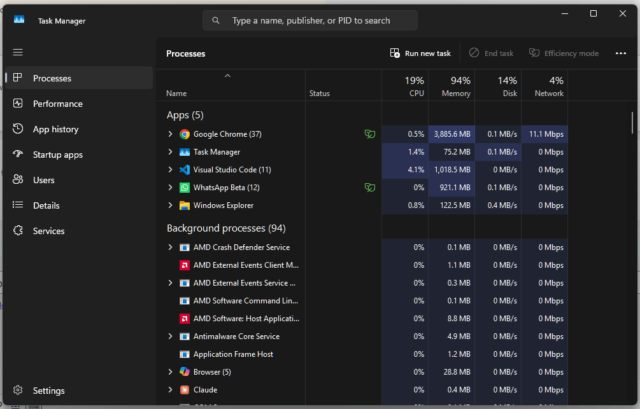
The first step is to determine which resource is causing the bottleneck. Windows users can check Task Manager, while macOS users can use Activity Monitor.
Look for unusually high CPU, memory, disk, or energy usage. This information can quickly narrow down the problem.
Why Is My Computer So Slow All of a Sudden?
When a computer becomes slow suddenly, the cause often differs from normal aging.
A recent software installation, operating system update, malware infection, browser extension, or background process may suddenly consume significant system resources. Your storage drive may also have reached a critically low amount of free space.
For example, imagine that your laptop normally uses about 50% of its memory. You install a few applications that automatically launch when Windows starts. Now several programs run in the background before you even open your browser. Your computer has less memory available, so everyday tasks feel slower.
A sudden slowdown can also occur when an application gets stuck or a system process consumes unusually high CPU usage.
What to Check First
Open your system’s resource monitor and check these areas:
- CPU: Shows how heavily your processor is working.
- Memory/RAM: Shows how much system memory applications are using.
- Disk: Shows storage-drive activity.
- Network: Helps identify heavy downloads or uploads.
- Startup applications: Shows programs that launch automatically.
If one application consistently consumes an unusually large amount of a resource, investigate that application before making major hardware changes.
1. Restart Your Laptop
It sounds simple, but restarting your computer can solve temporary performance problems.
When you use a laptop for hours or days, applications and background processes can accumulate. Some programs may not release memory properly after closing, while temporary system processes can continue running.
A restart gives the operating system a clean session and closes active processes.
If you usually put your laptop to sleep instead of restarting it, try a full restart when performance starts dropping.
This will not fix a hardware problem or malware infection, but it provides an easy first step when troubleshooting a slow computer.
2. Disable Unnecessary Startup Programs
One of the most common reasons a laptop takes a long time to start is the number of applications that launch automatically.
Messaging applications, cloud storage tools, game launchers, update utilities, and other programs may start even when you do not need them.
On Windows
Open Task Manager and go to the startup applications section. Review the applications that launch when Windows starts.
Disable programs that you recognize and do not need immediately after startup.
Do not disable system components simply because you do not recognize their names. If you are unsure about a startup item, research its purpose before changing it.
On macOS
Open System Settings, then check the General > Login Items section. Remove applications that you do not want launching automatically.
Reducing startup applications can make boot times feel faster and leave more resources available for the programs you actually use.
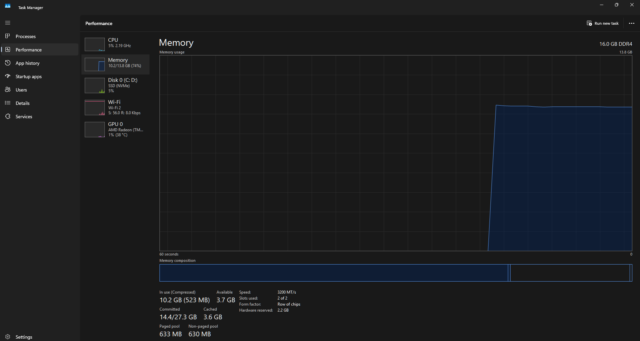
3. Check Your RAM Usage
RAM, or random access memory, temporarily stores data that your applications need while they run.
If your laptop frequently runs out of available RAM, the operating system may rely more heavily on storage to manage active data. Because storage is generally slower than RAM, the system can feel sluggish.
You may notice this when:
- Switching between applications takes several seconds
- Your browser becomes slow with many tabs open
- Programs freeze when you multitask
- The laptop becomes slower after opening several large applications
- The system frequently uses virtual memory
For example, someone editing photos while keeping dozens of browser tabs, a video call, and several other applications open may push a laptop with limited RAM much harder than normal.
Should You Upgrade RAM?
A RAM upgrade can make a significant difference if your laptop supports it and memory consistently reaches high usage.
However, many modern laptops use soldered memory that cannot be upgraded. Check your specific model’s specifications before buying RAM.
If your laptop does not support a memory upgrade, closing unnecessary applications and reducing browser tabs can still help.
4. Free Up Storage Space
A nearly full storage drive can contribute to poor system performance and make everyday file management more difficult.
Check how much free space remains on your SSD or hard drive. If your storage is almost full, remove unnecessary files and applications.
Start with:
- Large downloads
- Old installation files
- Unused applications
- Duplicate media
- Temporary files
- Old backups
- Large files you no longer need
Do not delete system files simply because they look unfamiliar.
If you have important personal files, create a backup before performing major cleanup.
5. Reduce Browser Load
Sometimes the laptop itself is not the main problem. Your browser may simply be using too many resources.
Modern websites can run scripts, advertisements, video players, web applications, and background processes. Opening dozens of tabs can consume a substantial amount of memory.
Try closing tabs that you no longer need.
You should also review browser extensions. Disable or remove extensions you no longer use.
If your browser has become unusually slow, test the same websites in a private browsing window. If performance improves, an extension or stored browser data may be contributing to the problem.
You can also compare another browser to determine whether the slowdown affects the entire system or only one browser.
6. Scan for Malware and Unwanted Software
Malware can affect computer performance by running unwanted processes in the background.
Potential warning signs include:
- Unexpected pop-ups
- Unknown applications
- Browser redirects
- Unusual CPU or disk activity
- New browser extensions you did not install
- Significant performance changes without an obvious reason
- Security warnings
Use reputable, built-in security tools or trusted security software to scan your computer.
Do not install several security programs simply because you think more scanners will automatically provide better protection. Multiple real-time security products can sometimes create additional resource usage or conflicts.
If you suspect serious malware, avoid entering sensitive information on the affected computer until you address the issue.
7. Check for Overheating
Heat can make a laptop feel dramatically slower.
Modern processors can reduce their operating speed when temperatures become too high. This behavior helps protect the hardware, but it can also cause noticeable performance drops.
A laptop that runs smoothly when cold but becomes slow after 20 or 30 minutes of heavy use may have a thermal problem.
Common causes include:
- Blocked ventilation
- Dust buildup
- Using the laptop on a soft surface
- Poor airflow
- Heavy workloads
- A cooling fan that is not working properly
Keep ventilation openings clear and place the laptop on a hard, stable surface.
If the fan constantly runs at high speed or the laptop becomes unusually hot, professional cleaning or hardware inspection may be appropriate.
8. Update Your Operating System and Drivers
Operating system updates can include bug fixes, security improvements, compatibility changes, and performance-related fixes.
Check whether your laptop has pending system updates.
You should also make sure important device drivers remain compatible with your operating system, particularly graphics, chipset, network, and storage-related drivers.
However, avoid downloading random drivers from unknown websites. Use your laptop manufacturer’s official support resources or trusted operating system update mechanisms.
Before installing a major update, back up important files.
Updates can improve reliability, but they do not automatically make old hardware faster. If your laptop has an older processor, limited RAM, or a slow mechanical hard drive, software updates cannot completely overcome those hardware limitations.
9. Consider Your Storage Drive and Hardware Age
If your laptop still feels slow after software cleanup, the hardware may be the limiting factor.
Older computers often use mechanical hard disk drives. SSDs generally provide much faster access to data and can make an older computer feel considerably more responsive when the system supports an upgrade.
A failing storage drive can also cause severe slowdowns, application freezes, file errors, or unusually long loading times.
If you notice these symptoms, back up your important data immediately.
Do not wait for a storage drive to fail before creating a backup.
When Should You Replace the Laptop?
Consider replacement when several limitations occur at the same time, such as:
- The processor struggles with your normal workload
- The laptop has insufficient RAM that cannot be upgraded
- The storage cannot be upgraded
- The battery has severely degraded
- The device overheats despite proper maintenance
- It no longer receives important software or security support
- Repair costs approach the value of the laptop
A hardware upgrade makes sense when one component causes the bottleneck. Replacing the entire laptop makes more sense when multiple components have reached their practical limits.
How to Fix a Slow Laptop: A Simple Troubleshooting Order
If you want a straightforward answer to how to fix a slow laptop, follow this order:
- Restart the laptop.
- Check CPU, memory, and disk usage.
- Close unnecessary applications and browser tabs.
- Disable unnecessary startup programs.
- Remove unused applications and large unnecessary files.
- Check available storage space.
- Run a security scan.
- Install pending operating system updates.
- Check for overheating and blocked ventilation.
- Investigate RAM, SSD, or other hardware limitations.
This approach starts with free and low-risk fixes before moving toward hardware changes.
How to Find the Real Cause of a Slow Laptop
Instead of randomly changing settings, treat slow performance like a troubleshooting problem.
For example, imagine that your laptop freezes whenever you open a video editor.
Check the resource monitor while the video editor is running.
If RAM usage becomes extremely high, memory may be the bottleneck.
If CPU usage remains near maximum, the processor may be struggling with the workload.
If storage activity stays extremely high, the storage system or virtual memory usage may be involved.
If temperatures rise significantly before performance drops, overheating may be responsible.
This process helps you fix the actual problem instead of spending money on hardware you do not need.
Common Mistakes That Can Make a Laptop Slower
Some popular “speed-up” advice can create more problems than it solves.
- You generally do not need several system-cleaning or optimization applications running in the background.
- Some of these programs consume resources themselves.
- Never remove files simply because a cleanup tool labels them as large or unfamiliar.
- System folders often contain files required for Windows, macOS, drivers, or applications.
- Disabling everything can cause problems with security tools, hardware utilities, synchronization services, and other important functions.
- Disable only applications you understand.
- Before making major changes to your operating system, storage, or hardware, back up important files.
- A performance problem is frustrating. Losing personal data is much worse.
- More RAM helps when memory limits your workload. It will not necessarily fix a failing SSD, overheating processor, malware infection, or application-specific problem.
Laptop Performance: Software vs. Hardware Problems
Knowing whether you have a software or hardware problem can save time and money.
| Problem | Likely Cause | Possible Solution |
|---|---|---|
| Slow startup | Too many startup apps | Disable unnecessary startup items |
| Browser feels slow | Tabs or extensions | Close tabs and review extensions |
| Apps freeze during multitasking | Limited RAM | Reduce workload or upgrade RAM |
| Laptop gets slower when hot | Thermal throttling | Improve airflow and clean vents |
| Files take a long time to open | Slow or failing storage | Check or replace the drive |
| Sudden unexplained slowdown | Background process or malware | Check resource usage and scan |
| Entire system feels outdated | Aging hardware | Consider an upgrade or replacement |
This distinction matters because software fixes will not solve every hardware limitation.
When a Slow Laptop Is Normal
Not every older laptop has a serious problem.
As applications, websites, operating systems, and security requirements become more demanding, older hardware can struggle with workloads that were once easy.
For example, a laptop designed primarily for document editing several years ago may not perform well with modern video editing, gaming, large spreadsheets, or heavy multitasking.
If your laptop performs consistently but simply cannot keep up with your current workload, upgrading the hardware or replacing the device may be more practical than endless software optimization.
How to Keep Your Laptop Fast
Once you fix the immediate problem, a few habits can help maintain performance.
- Keep reasonable free space on the storage drive.
- Remove applications you no longer use.
- Review startup programs periodically.
- Keep your operating system updated.
- Install software from reputable sources.
- Keep browser extensions under control.
- Avoid blocking cooling vents.
- Use a reliable backup strategy.
- Monitor unusual CPU, RAM, disk, or temperature behavior.
- Upgrade hardware when your workload genuinely requires it.
The goal is not to constantly “optimize” your computer. The goal is to avoid unnecessary workloads and identify problems early.
Are Laptop Speed-Boosting Tools Worth It?
Be careful with applications that promise dramatic performance improvements with one click.
Some utilities provide useful functions, such as uninstalling applications or identifying large files. However, many advertised “speed boosters” cannot overcome fundamental hardware limitations.
If your laptop has limited RAM, an aging processor, a failing storage drive, or severe overheating, an optimizer cannot magically transform it into a modern computer.
Start with the tools already included with your operating system. They usually provide enough information to identify many common performance problems.
What About Factory Resetting a Slow Laptop?
A factory reset can help when software problems have accumulated over time, especially if the operating system has become heavily cluttered.
However, a reset should not be your first step.
Before resetting:
- Back up personal files.
- Make sure you know your account passwords.
- Confirm you can reinstall essential applications.
- Save browser data that you need.
- Check that important files exist in your backup.
A factory reset can remove software-related clutter, but it will not fix a failing SSD, overheating hardware, insufficient RAM, or an underpowered processor.
The Future of Laptop Performance
Laptop performance will continue to depend on more than raw processor speed.
Modern computers increasingly use specialized hardware for artificial intelligence workloads, graphics processing, video processing, security, and power management. Operating systems and applications also continue to become more feature-rich.
That makes efficient resource management increasingly important.
Future laptops will likely continue improving performance per watt, battery efficiency, thermal management, and specialized acceleration. However, basic troubleshooting principles will remain useful: identify the bottleneck, measure resource usage, and fix the underlying problem rather than relying on generic optimization claims.
Frequently Asked Questions
Why is my laptop so slow even though I have plenty of storage?
Storage capacity and storage performance are different things. You can have plenty of free space while still experiencing problems caused by limited RAM, high CPU usage, overheating, background applications, or an aging storage drive.
Why is my computer so slow all of a sudden?
A sudden slowdown can result from a background process, software update, malware, a newly installed application, excessive browser activity, overheating, or a storage problem. Check CPU, memory, and disk usage first.
Why is my laptop extremely slow when I start it?
Too many startup applications commonly increase boot time. Review your startup programs and disable applications that you do not need immediately after login.
Can low storage make a laptop slow?
Very low free storage can contribute to performance problems, particularly when the operating system and applications need space for temporary files and other operations. Freeing unnecessary space is a sensible troubleshooting step.
Does restarting a laptop make it faster?
A restart can clear temporary processes and refresh system resources, so it can improve performance when a temporary software problem causes the slowdown. It will not fix permanent hardware limitations.
Does more RAM make a laptop faster?
More RAM can improve performance when your current workload regularly exhausts available memory. It will not necessarily solve problems caused by CPU limitations, overheating, malware, or a failing storage drive.
Should I buy a new laptop if mine is slow?
Not necessarily. First identify the bottleneck. A RAM or SSD upgrade, software cleanup, cooling improvement, or removal of problematic software may extend the useful life of your laptop. Replacement becomes more reasonable when multiple hardware limitations exist or upgrades are not practical.