
How to Add a Button That Scrolls to a Section in WordPress
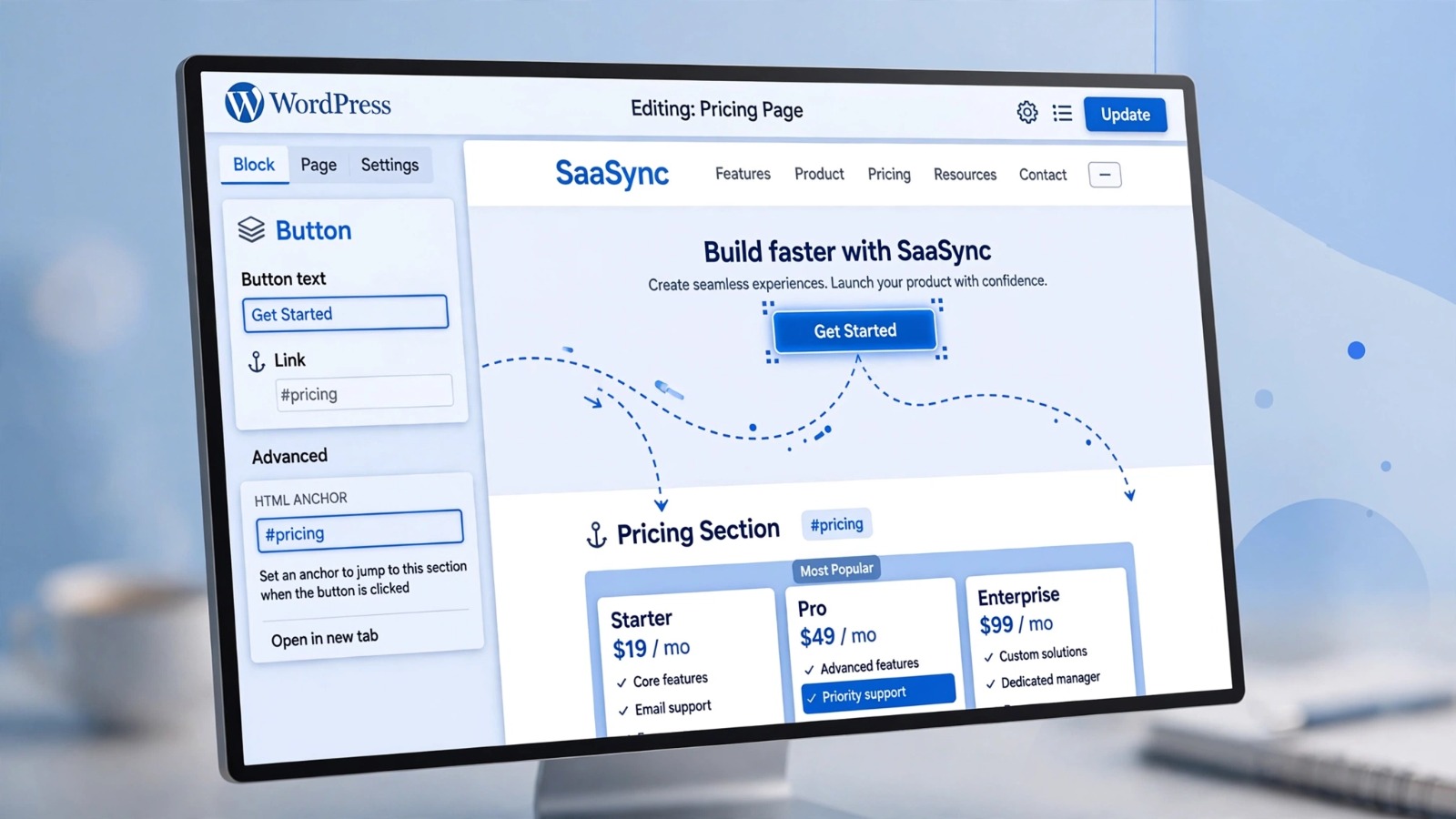
Want to make a WordPress button scroll to a specific section on the same page? You can do this using an anchor link and a matching HTML ID.
For example, you can create a “View Pricing” button that scrolls visitors to your pricing section, or a “Contact Us” button that takes them directly to your contact form.
In this guide, you’ll learn how to make a WordPress button scroll to a section using Gutenberg and Elementor, how to create anchor links, and how to fix common WordPress button scroll issues when the link doesn’t work.
Examples:
“View Pricing” button → Pricing section
“Contact Us” button → Contact form section
“Learn More” button → Features section
How to Link a WordPress Button to a Section
To send a button to a specific section in WordPress, you need two things:
- Section Anchor ID
- Button Link
Example:
Your section have an ID
Pricing
#pricing
Method 1: How to Make a WordPress Button Scroll to a Section in Gutenberg
If you are using WordPress’s default Block Editor (Gutenberg), follow these steps.
Step 1: Select the Target Section
First, select the section where you want to take the visitor.
Example:
You have a Pricing section on your page.
Step 2: Add an HTML Anchor
- Select the Section or Group block.
- Open the Block Settings from the right sidebar.
- Click on the Advanced option.
- Add a name in the HTML Anchor field.
Example:
pricing
Important:
- Don’t use spaces
- Separate anchors for every sections
Step 3: Add the Button
Now, connect the button with the section:
- Select the Button block.
- Open the Link option.
- Add the Anchor ID:
#pricing
- Now save the button.
When a visitor clicks the button, it will scroll to the section with the matching pricing HTML anchor.
Method 2: How to Make an Elementor Button Scroll to a Section
If you are using the Elementor page builder, the process is even simpler.
Step 1: Add the Menu Anchor Widget
- Open the Elementor editor.
- Drag the Menu Anchor widget above the target section.
- Enter the Anchor ID.
Example:
contact
Step 2: Add the Button Link
- Edit the button.
- In the Link field, enter:
#contact
- Update the button.
Now, when a user clicks the button, they will automatically scroll to the Contact section.
WordPress Button Scroll to Section Not Working?
If nothing happens after clicking the button, check the following things:
1. Is the Anchor ID Matching?
Section:
services
Button:
#services
Both values must be exactly the same.
2. Do Not Use Spaces in Anchor IDs
Wrong:
my services
Correct:
my-services
3. Remove Duplicate Anchor IDs
Do not use the same anchor ID multiple times on a single page.
Wrong:
#contact
#contact
Correct:
#about
#services
#contact
How to Enable Smooth Scroll in WordPress?
Normally, WordPress themes handle anchor scrolling automatically.
If you want to add smooth scrolling, follow these steps:
Go to:
Appearance → Customize → Additional CSS
Add this code:
html { scroll-behavior: smooth; }
This will make the page scroll smoothly instead of jumping directly to the section.
Frequently Asked Questions
What Is an Anchor Link in WordPress?
An anchor link is a link that takes users directly to a specific section on the same page.
Can an Elementor Button Be Linked to a Section?
Yes, in Elementor, you can use the Menu Anchor widget to connect a button to any section on the page.
Can You Create Jump Links in WordPress?
Yes, jump links can be easily created in WordPress by using anchor IDs.